SnipDone / How-to guide
Keep a screenshot above other windows on Mac
Keep a visual reference in view while you work in another app.
· SnipDone
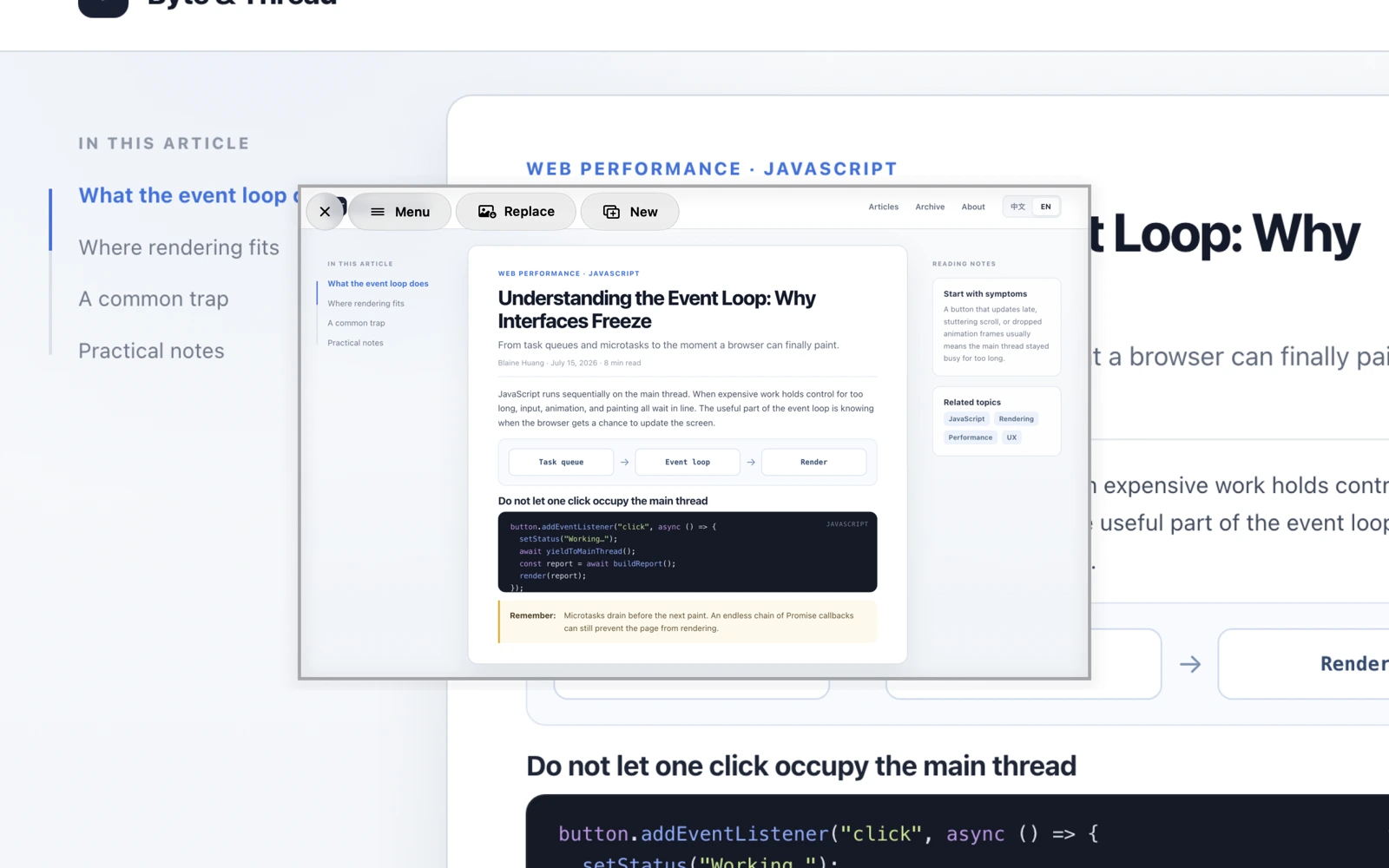
A screenshot is easier to use as a reference when it stays beside the document you are editing. In SnipDone, you can pin the latest capture above regular app windows instead of switching back and forth to an image viewer.
Pin a reference image
- Capture the part of the screen you want to keep.
- Choose Pin from the annotation workspace, dashboard or menu-bar action for the latest capture.
- Place the floating image where it leaves your working area readable.
- Hover over the image to reveal its controls. Replace it, add another pinned image or close it when finished.
Use it for a specific task
Keep a design detail visible while adjusting a layout, a paragraph beside your notes, or an example next to the document you are writing. Crop to the useful part before pinning so that the reference does not cover the controls you need.
Will the pinned image appear in a new screenshot?
SnipDone hides pinned images from its new captures by default. If your explanation needs to include the reference, enable the setting to include pinned images. Check the resulting screenshot before sharing it.
The pinned window uses the screenshot itself without export shadow or frame decoration. To prepare a picture for sharing, use annotation and file export instead.