SnipDone / How-to guide
Pick a color from your Mac screen
Magnify the target pixel, sample it, then copy the value into your work.
· SnipDone
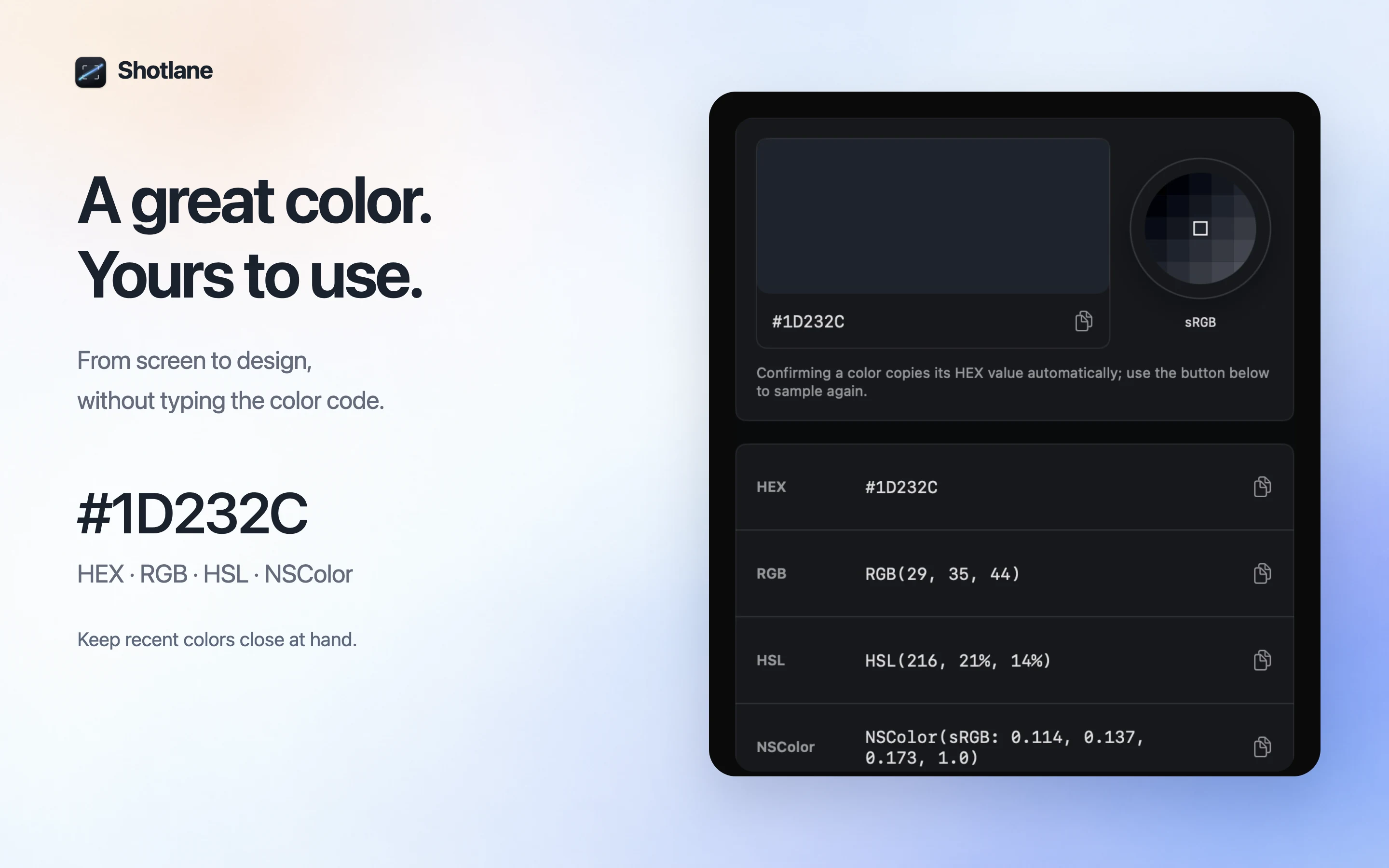
When a color is visible in an app or image but its original value is unavailable, a screen color picker gives you a starting point. SnipDone samples the displayed pixel; a displayed color can differ from the source asset because of color profiles, transparency or image compression.
Sample a color in SnipDone
- Open the color picker from SnipDone’s dashboard, menu bar or configured shortcut.
- Move over the target area and use the loupe to locate the pixel you want.
- Select the pixel and copy the color value in the format offered by the picker.
- Paste it into your design tool or code, then compare the result with the reference.
Avoid sampling an edge
Letters and rounded shapes have blended pixels along their edges. To match a flat fill, sample well inside the shape. A translucent panel includes the background in its displayed color, so inspect the original design value if you need an exact specification.
Keep the reference nearby
Recent colors help you return to a previous sample. If you are matching a group of details, pin a screenshot beside the design and use short labels or numbered annotations to document the choices.