Shotlane / How-to guide
How to copy text from a screenshot on Mac
Recognize words in a selection or recent capture, edit the result, and copy it.
· Shotlane
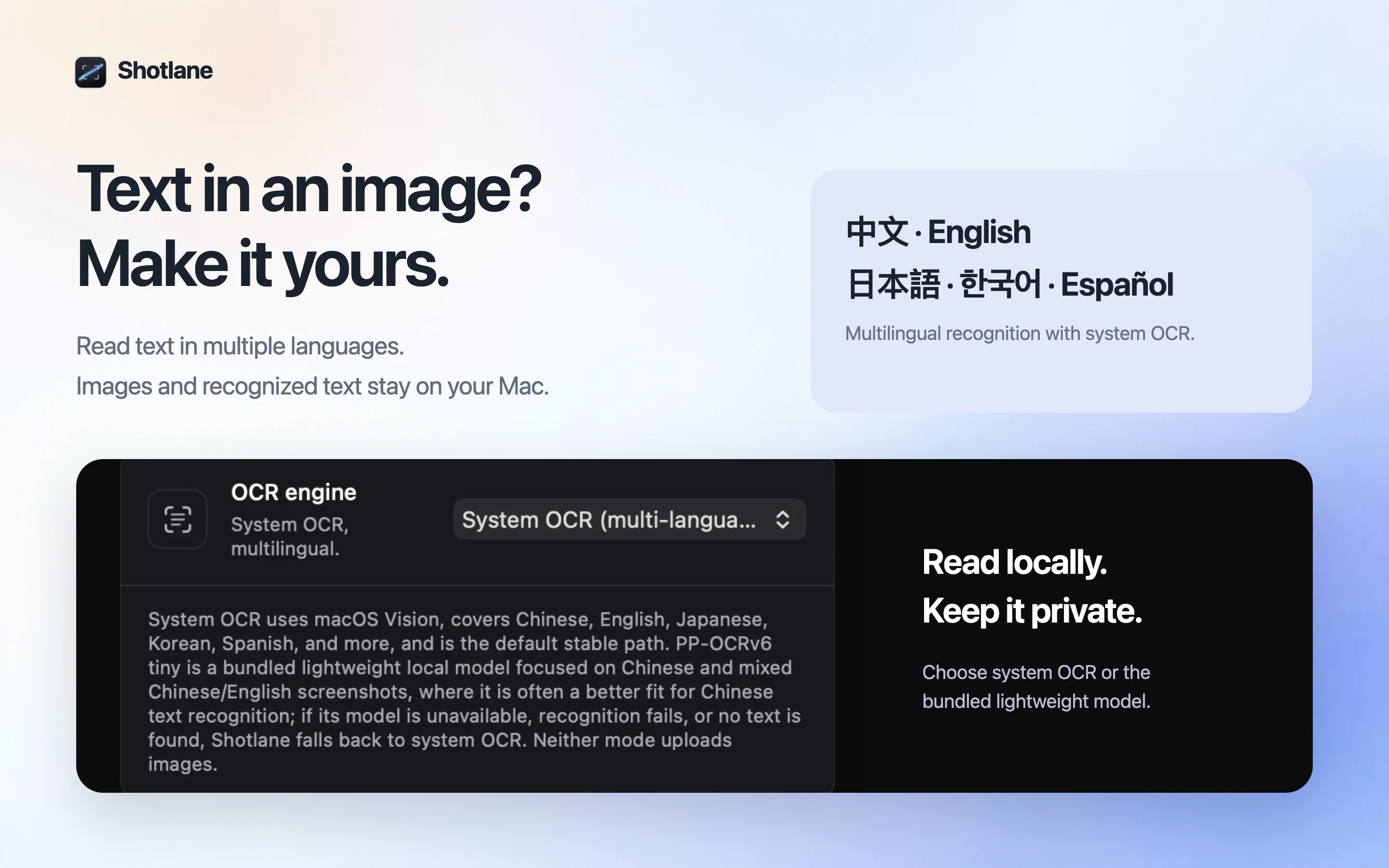
Text inside an image is not always selectable. OCR, or optical character recognition, turns visible letters into text you can edit and paste. Shotlane can run OCR on a selected screen area or your latest capture, and the recognition stays on your Mac.
Extract text in Shotlane
- Open Shotlane and choose Text Recognition, or open a recent capture and use OCR from the annotation controls.
- Select the part of the screen that contains the words, or use the latest screenshot.
- Read the result in the OCR panel. Correct punctuation, line breaks, or mistaken characters before using the text.
- Copy the result and paste it into your document, note, or message.
Choosing an OCR engine
Apple Vision is the default recognition engine. Shotlane also includes an optional local PP-OCRv6 Tiny engine in its settings. Both process text on the device; the optional engine is a choice for testing different material, not a promise of perfect accuracy.
What affects accuracy?
Small type, low contrast, overlapping controls, stylized lettering, and mixed languages can cause errors. Crop tightly around the text, capture at the original display size, and verify names, numbers, URLs, and code before sharing. OCR copies text; it does not guarantee the original formatting or reading order.
Built-in Mac option
For photos in the Photos app, Apple’s Live Text guide shows how to select and copy text. Shotlane is useful when the words are in a screen selection or a screenshot already in your capture workflow.
If the screenshot is wider than your display, start with the scrolling capture guide. To share the image with visible callouts, follow the annotation guide.