Shotlane / Guides
Make more of your Mac screenshots
Practical steps for capture shortcuts, long pages, text recognition, annotation, floating references, colors and export.
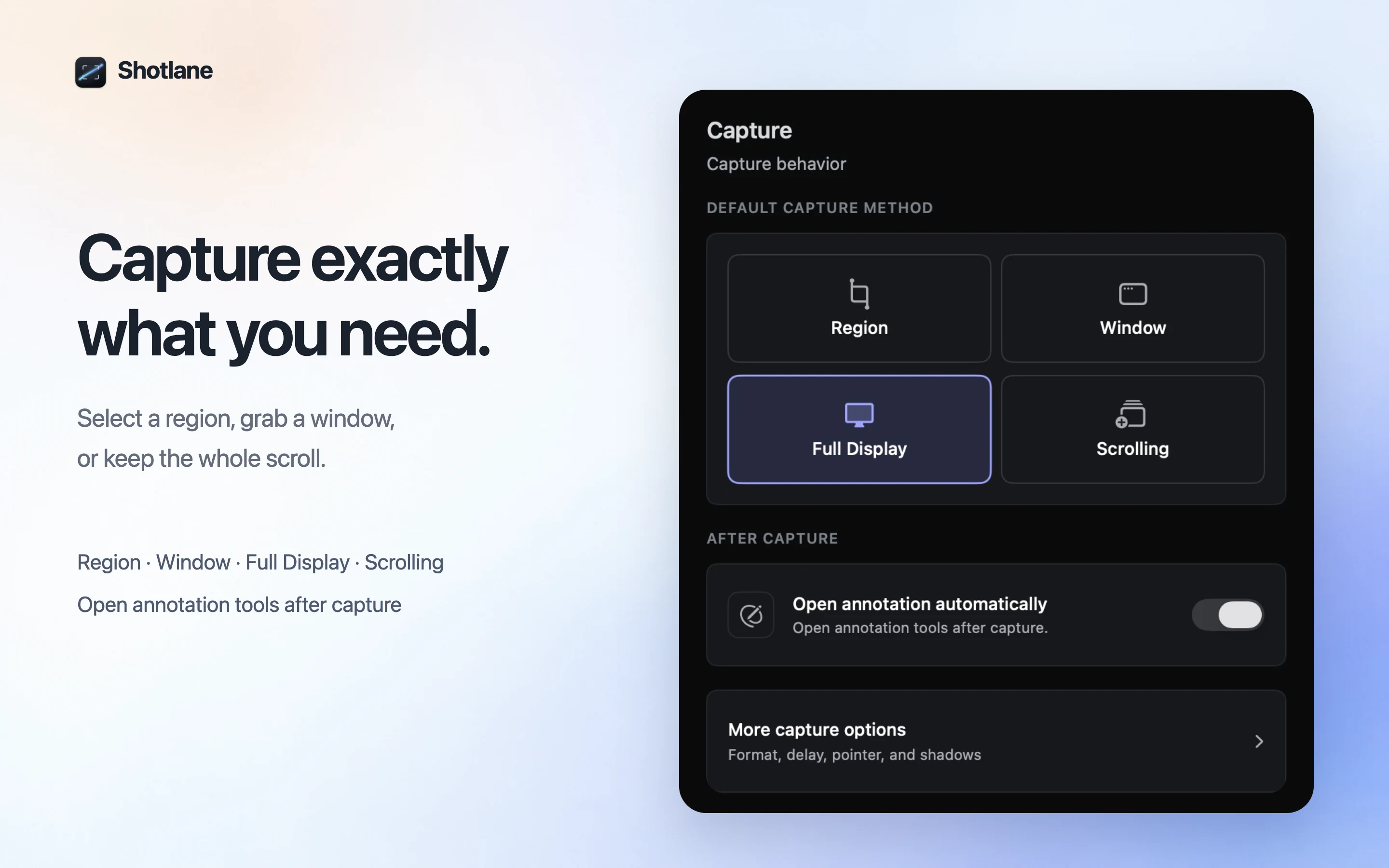 01
01How to take a scrolling screenshot on Mac
Choose the area, scroll at your own pace, then finish and save one long image.
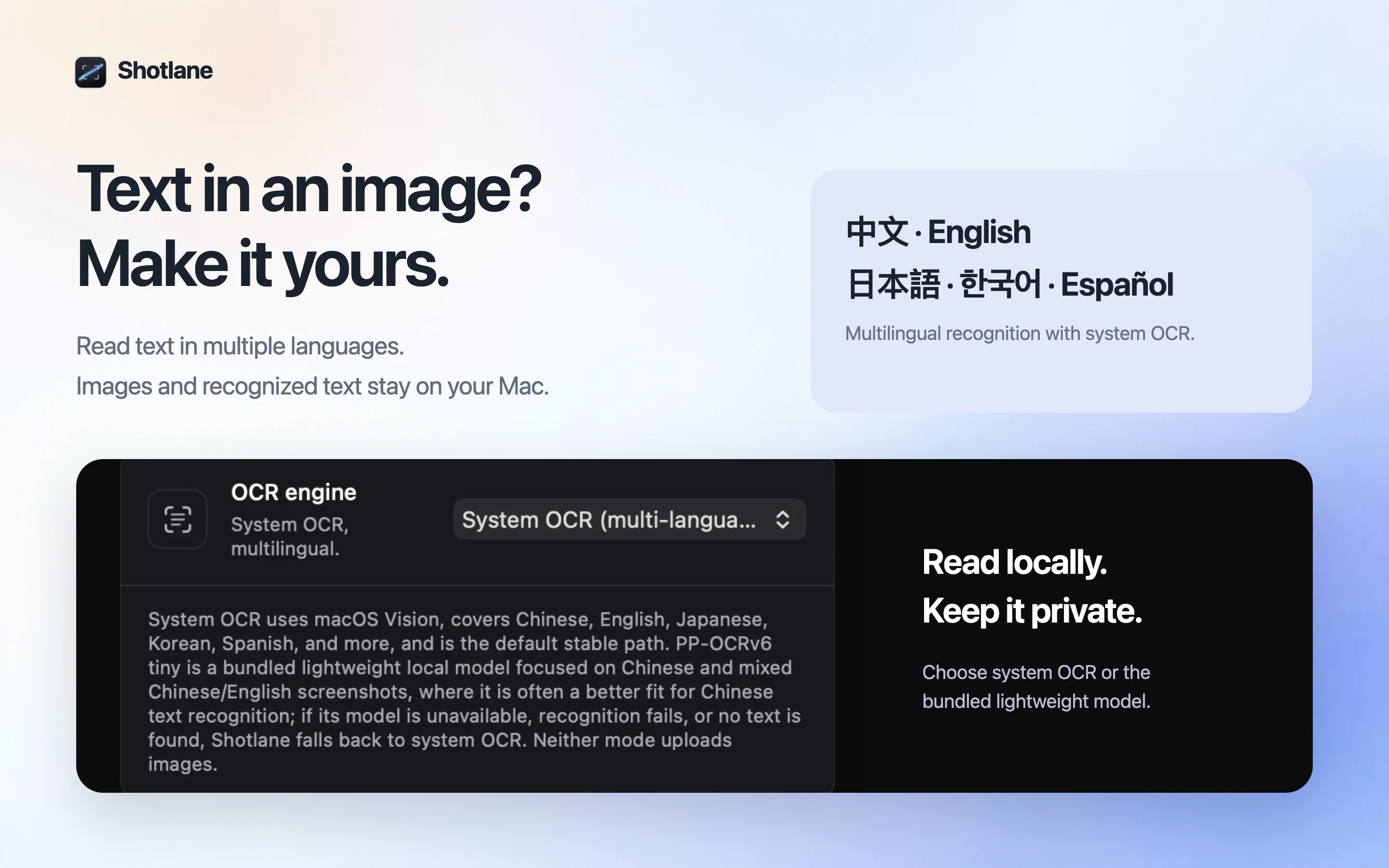 02
02How to copy text from a screenshot on Mac
Recognize words in a selection or recent capture, edit the result, and copy it.
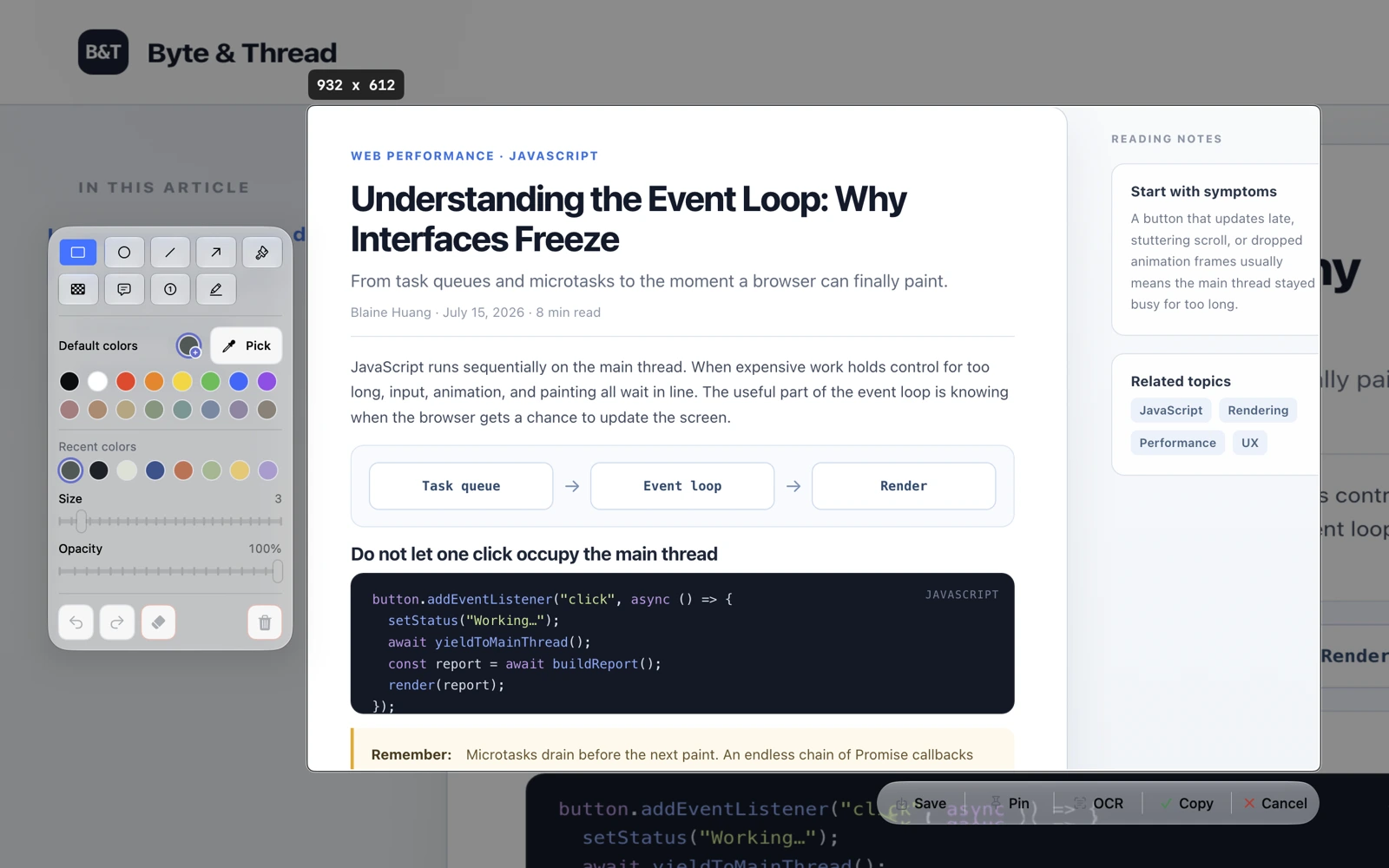 03
03How to annotate a screenshot on Mac
Show what matters with arrows, text, numbered steps, highlights, or mosaic.
04Mac screenshot shortcuts and when to use them
Choose a shortcut for the area you need, then decide whether to save or copy.
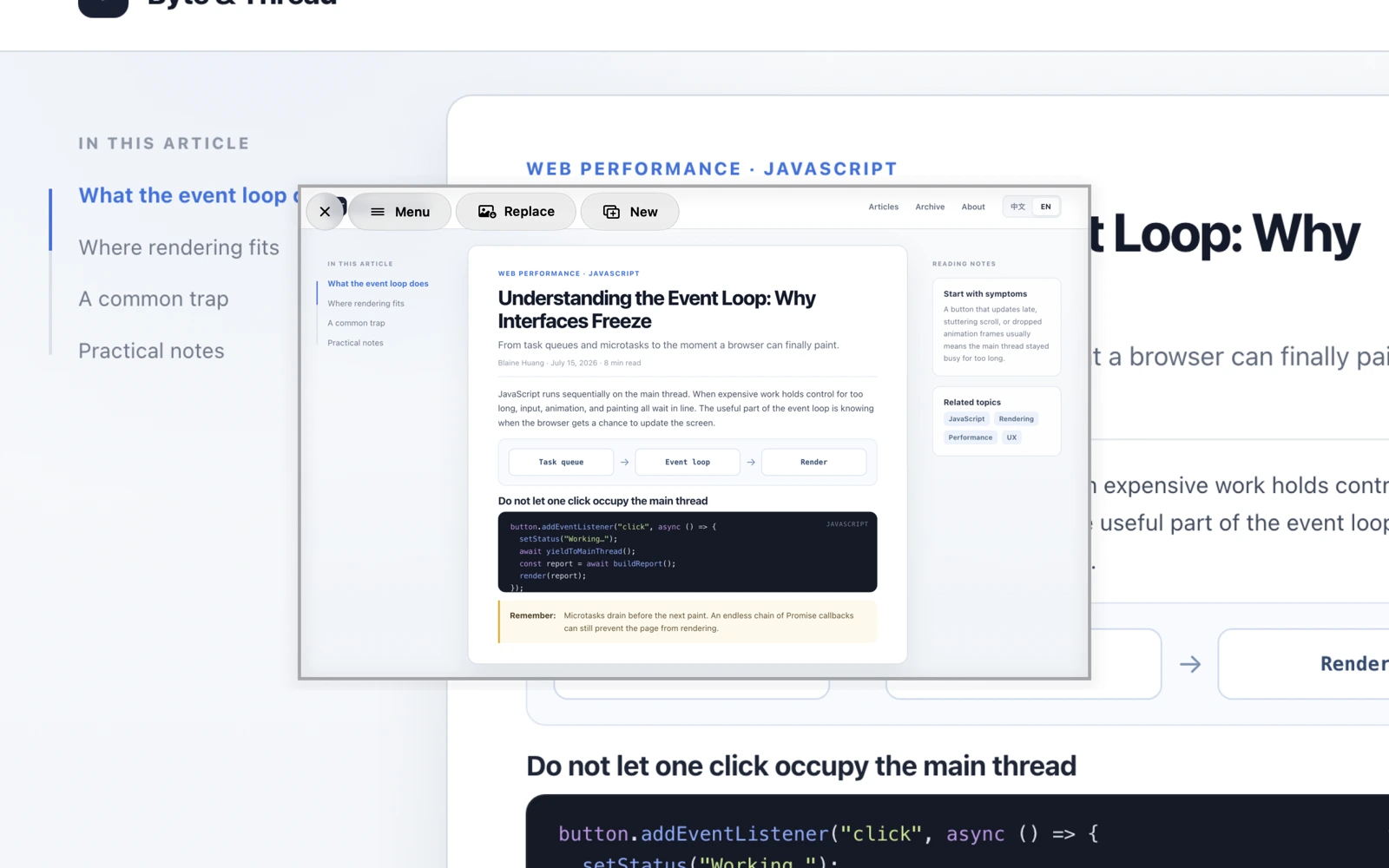 05
05Keep a screenshot above other windows on Mac
Keep a visual reference in view while you work in another app.
 06
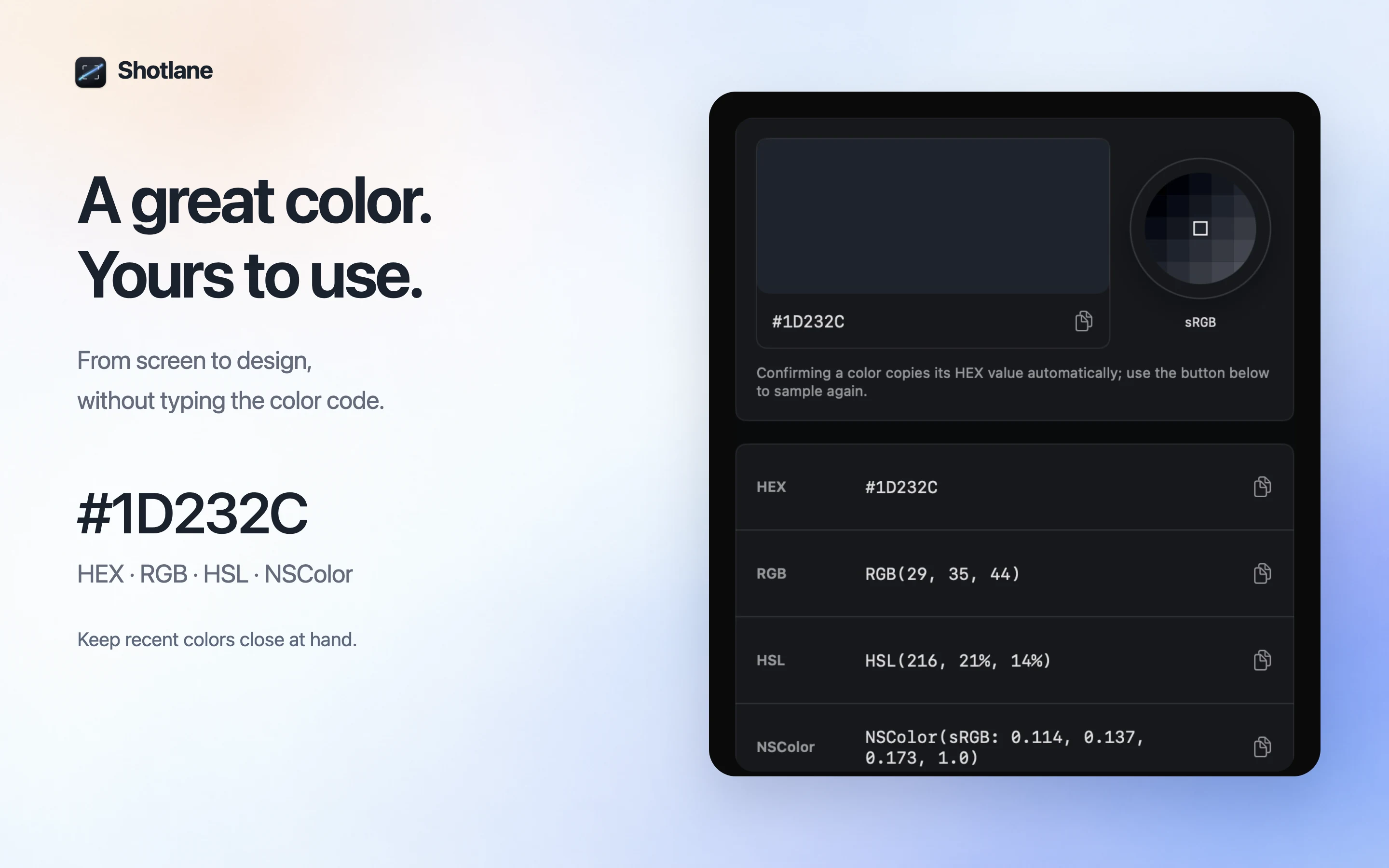
06Pick a color from your Mac screen
Magnify the target pixel, sample it, then copy the value into your work.
 07
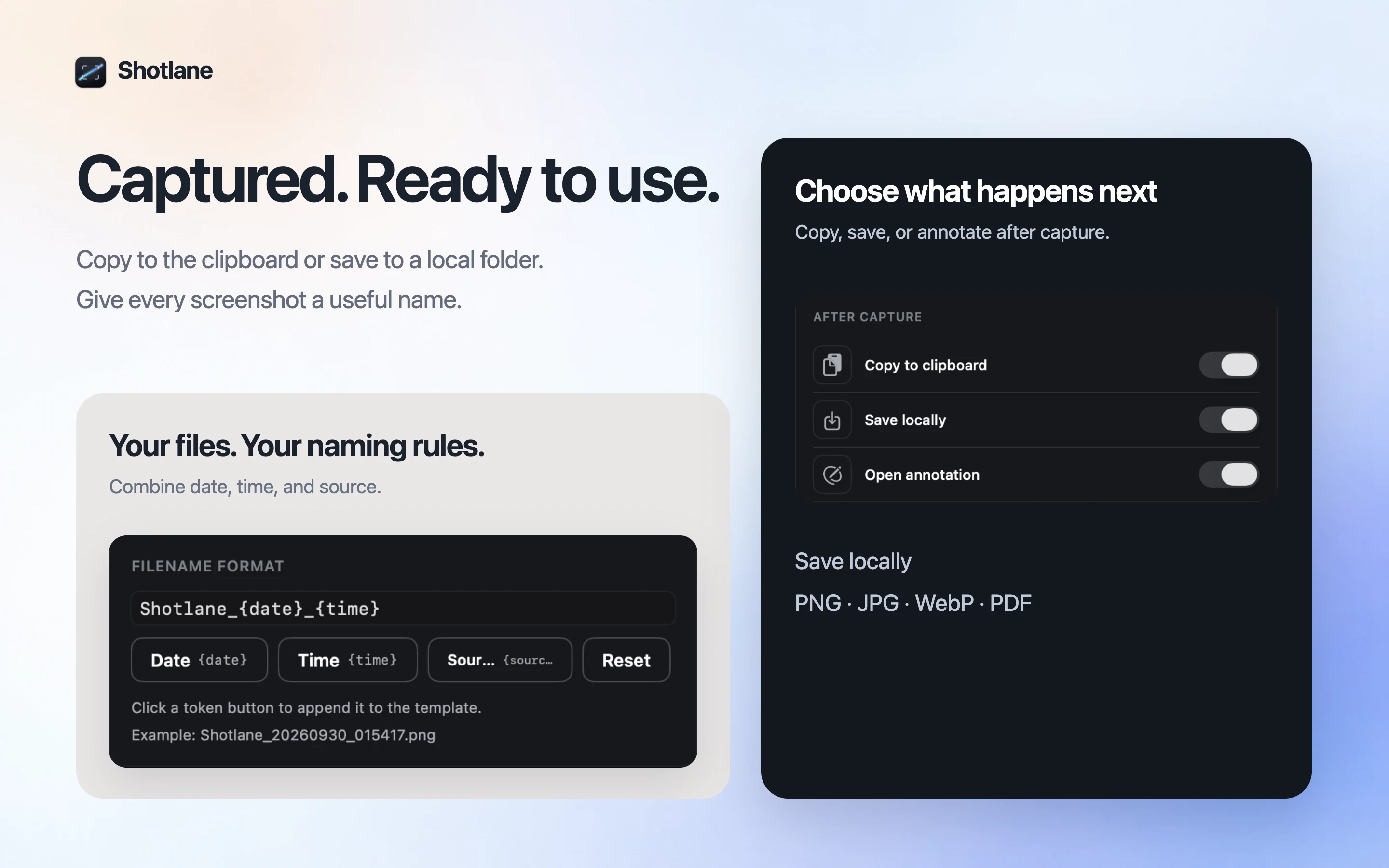
07Choose a file format for your Mac screenshot
Choose the format for the destination, then check the exported file.